




Google Chrome remains the dominant force in the global web browser market, commanding more than 65 percent of the total market share according to recent data from Statcounter. Since its debut in September 2008, Chrome has evolved from a minimalist, speed-focused alternative to Internet Explorer into a robust, feature-rich platform that serves as the operating system for much of the modern workforce. However, as the web has grown more complex—incorporating high-resolution video, heavy JavaScript frameworks, and real-time data streaming—even a powerhouse like Chrome can suffer from performance degradation.
Optimizing this browser is no longer just about having a fast internet connection; it involves fine-tuning the internal mechanisms that manage how data is downloaded, how memory is allocated, and how hardware resources are utilized. By accessing hidden experimental features and adjusting standard settings, users can significantly reduce page load times and improve system responsiveness.
The Evolution of Browser Performance: A Brief Chronology
To understand why Chrome requires optimization today, one must look at its historical trajectory. When Google first released Chrome, its primary selling point was the "V8" JavaScript engine and a multi-process architecture that prevented a single crashing tab from bringing down the entire browser.
In the early 2010s, Chrome’s speed helped it overtake Mozilla Firefox and Microsoft’s Internet Explorer. However, by 2015, the browser gained a reputation for being a "memory hog." This was a side effect of its sandboxing security model, where every tab and extension ran as a separate process. While this increased security and stability, it placed a heavy burden on System RAM.
Recognizing these challenges, Google began a multi-year effort to refine Chrome’s resource management. In late 2022 and early 2023, the company introduced "Performance" settings, including Memory Saver and Energy Saver modes, as part of Chrome version 108 and 110. These updates marked a shift from raw speed to "intelligent performance," where the browser attempts to predict user needs and throttle background activity.

Unlocking Parallel Downloading for Faster File Transfers
One of the most effective ways to increase Chrome’s speed is by enabling parallel downloading. By default, most browsers download files in a single, continuous stream. If you are downloading a large file, the browser establishes one connection to the server and pulls the data sequentially.
Parallel downloading changes this dynamic by breaking the file into multiple "chunks" and downloading them simultaneously through separate connections. This is analogous to opening multiple lanes on a highway to alleviate traffic congestion. To activate this, users must access the "Flags" menu—a repository of experimental features that have not yet been enabled by default for all users.
By navigating to chrome://flags and searching for "parallel downloading," users can toggle the setting from "Default" to "Enabled." This is particularly beneficial for users on high-bandwidth connections where the bottleneck is often the single-thread limit of a server rather than the user’s actual internet speed. While not every server supports multiple concurrent requests for the same file, the majority of modern content delivery networks (CDNs) do, resulting in noticeably faster download completion times.
Predictive Browsing: The Mechanics of Prerendering
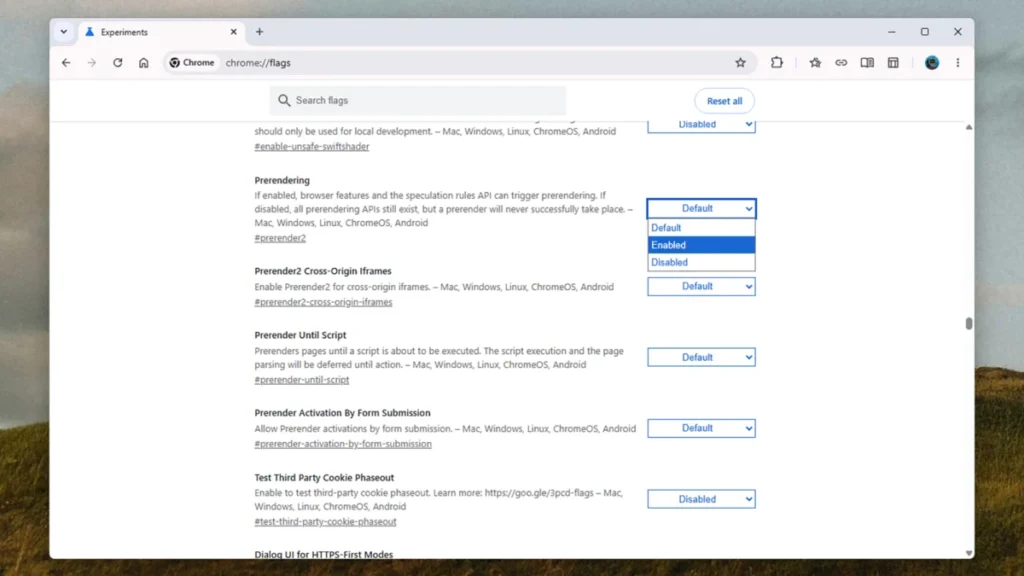
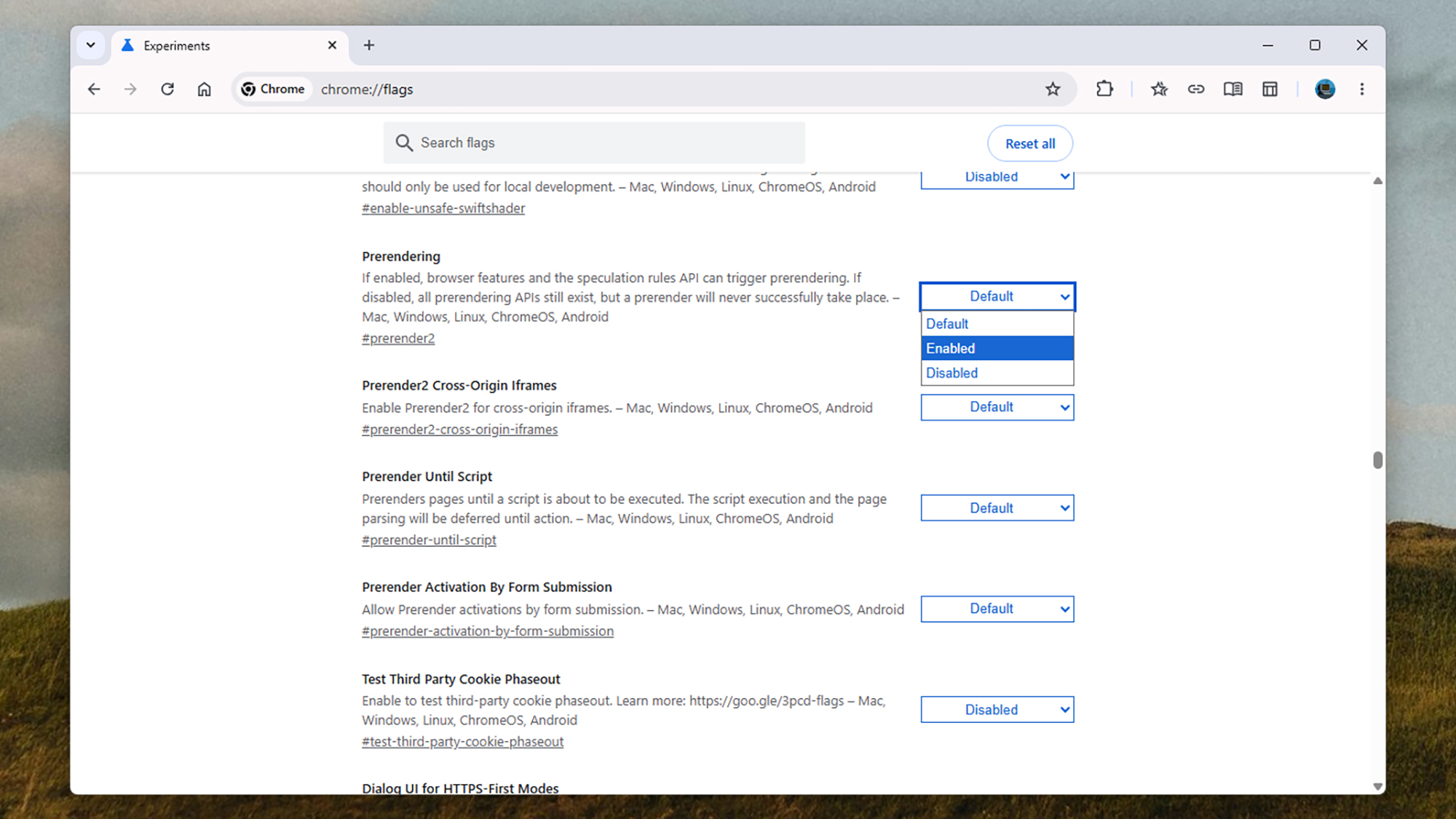
Modern web browsing is increasingly becoming a game of prediction. Chrome utilizes a feature known as "Prerendering," which leverages the Speculation Rules API to guess which link a user is likely to click next. If the browser is confident in its prediction, it begins loading the destination page in the background before the user even interacts with the link.
This process involves more than just DNS prefetching (which resolves the IP address of a link) or TCP preconnect (which establishes a handshake with the server). Full prerendering actually renders the page in a hidden state. When the user eventually clicks the link, the transition appears instantaneous because the page is already sitting in the system’s cache, fully processed.
Users can ensure this is active by visiting chrome://flags and enabling "Prerendering." Google’s engineers have noted that while this uses slightly more data and background CPU, the perceived performance gain is substantial. The browser uses various signals to make these predictions, such as the user’s past browsing habits and the movement of the mouse cursor toward specific UI elements.
Optimizing Hardware Acceleration and System Integration
Chrome is designed to work across a vast array of hardware, from low-end mobile phones to high-powered workstations. To maintain this flexibility, it includes a "Hardware Acceleration" toggle, found under the "System" tab in the main settings menu.
When enabled, Chrome offloads demanding tasks—such as rendering 3D graphics, processing 4K video, or running complex CSS animations—from the Central Processing Unit (CPU) to the Graphics Processing Unit (GPU). Because GPUs are designed for parallel processing of visual data, this usually results in a much smoother experience.
However, hardware acceleration can occasionally backfire. If a user has outdated graphics drivers or is using a device with an integrated GPU that shares memory with the CPU, hardware acceleration can cause visual "artifacts," flickering, or even browser crashes. Journalistic analysis of user reports suggests that for users with dedicated NVIDIA or AMD graphics cards, keeping this setting "On" is essential. Conversely, users on older laptops experiencing "laggy" scrolling may find that turning it "Off" actually stabilizes the browser by forcing the CPU to handle all rendering tasks directly.
Managing the "Memory Hog" Reputation: Memory Saver Mode
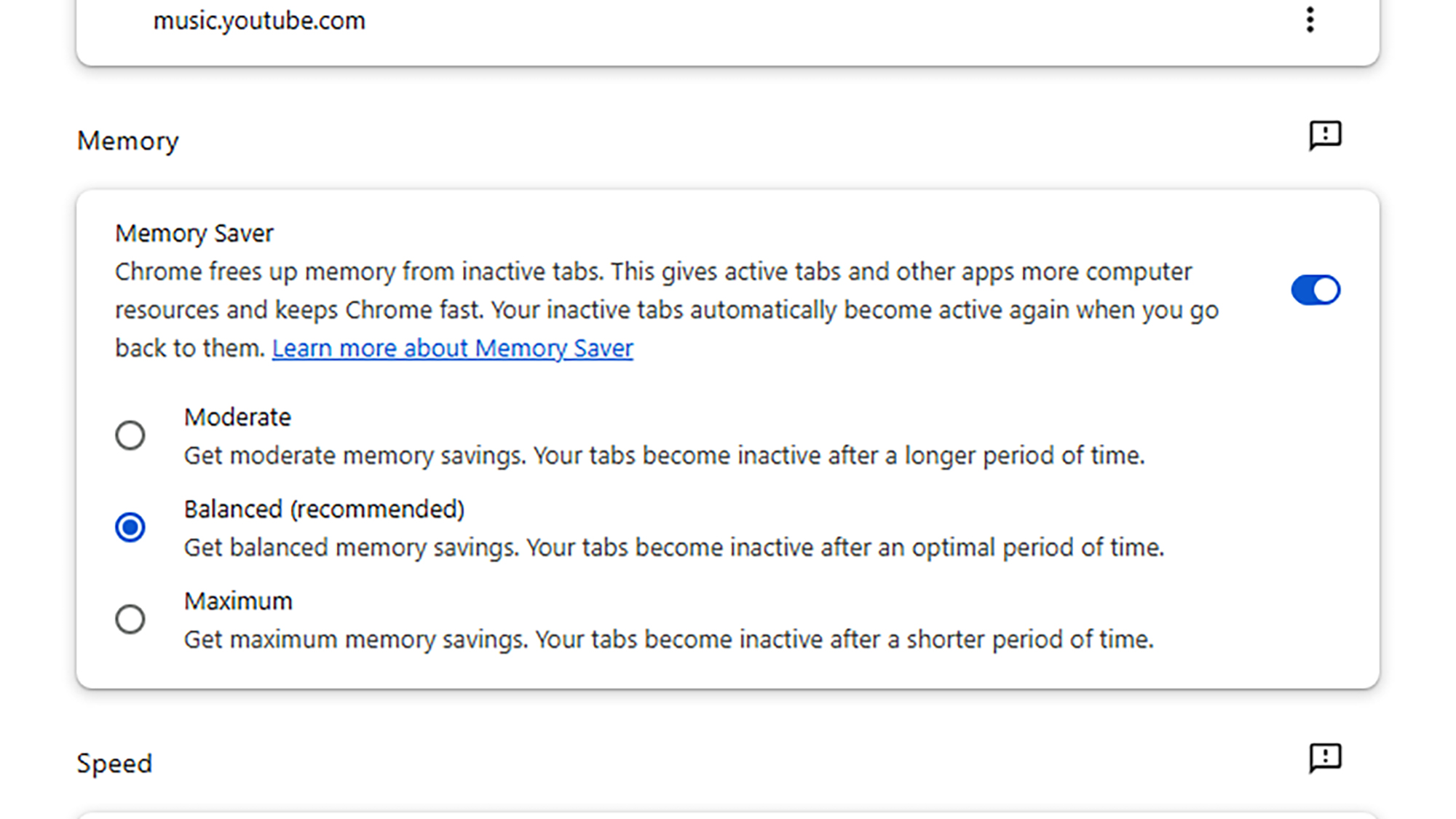
The most significant recent addition to Chrome’s performance toolkit is the Memory Saver mode. This feature addresses the primary complaint leveled against the browser: its high RAM consumption. In a typical browsing session, a user might have 20 or 30 tabs open, but only use two or three at any given time. Without optimization, all 30 tabs continue to consume memory to stay "live."
Memory Saver identifies inactive tabs and "freezes" them, releasing the RAM they were using back to the system. This ensures that the active tab and other system applications (like Microsoft Word or Slack) have the resources they need to run without stuttering.
According to Google’s Chromium blog, Memory Saver can reduce Chrome’s memory usage by up to 30 percent. When a user clicks back onto a frozen tab, it reloads automatically. For users who need specific tabs—such as a music player or a live stock ticker—to remain active at all times, Chrome allows for an "Always keep these sites active" whitelist. This granular control represents a sophisticated balance between resource conservation and user convenience.
The Hidden Cost of Extensions: Security and Speed
While the Chrome Web Store offers thousands of extensions that add functionality, these "mini-apps" are often the primary cause of browser slowdowns. Every extension added to Chrome requires its own slice of memory and CPU cycles. Furthermore, many extensions are configured to read and change data on every website a user visits, which adds a layer of processing overhead to every page load.
A "Performance Audit" of extensions is a critical step for any power user. By navigating to chrome://extensions, users can see which add-ons are active. Deleting unused extensions does more than just speed up the browser; it significantly enhances security. Security researchers have frequently pointed out that abandoned extensions can be sold to malicious actors who then update them with adware or data-tracking scripts.
Broader Implications and Official Responses
The push for a faster Chrome is not merely about user satisfaction; it has significant economic and environmental implications. Google’s "Core Web Vitals" initiative has shown that even a 100-millisecond delay in page load time can lead to a 7 percent drop in conversion rates for e-commerce sites. By making the browser faster through internal tweaks, Google is essentially greasing the wheels of the digital economy.
From an environmental perspective, the "Energy Saver" mode—which accompanies Memory Saver—reduces the browser’s impact on battery life by limiting background activity and reducing frame rates for videos. For the millions of people using Chrome on laptops, these optimizations contribute to longer device longevity and reduced energy consumption.
In official statements, Google’s performance team has emphasized that "speed is a core tenet of Chrome." The ongoing development of the "Privacy Sandbox" and the deprecation of third-party cookies are also expected to impact performance, as the browser moves away from heavy tracking scripts toward more streamlined, privacy-preserving APIs.
In conclusion, while Google Chrome is powerful out of the box, its "default" state is a compromise designed to work for the average user. By engaging with parallel downloading, prerendering, hardware acceleration, and aggressive memory management, users can reclaim system resources and ensure their browser remains a tool for productivity rather than a source of frustration. As the web continues to evolve, these manual optimizations will remain essential for anyone looking to maintain a competitive edge in a digital-first world.